Backup & Restore
PROCreate and restore backups, and keep a tidy history in the backup library
Overview
I lost a bunch of samples once when experimenting with firmware. Never again. This was one of the first features I built. Full device backup in about 2 minutes.
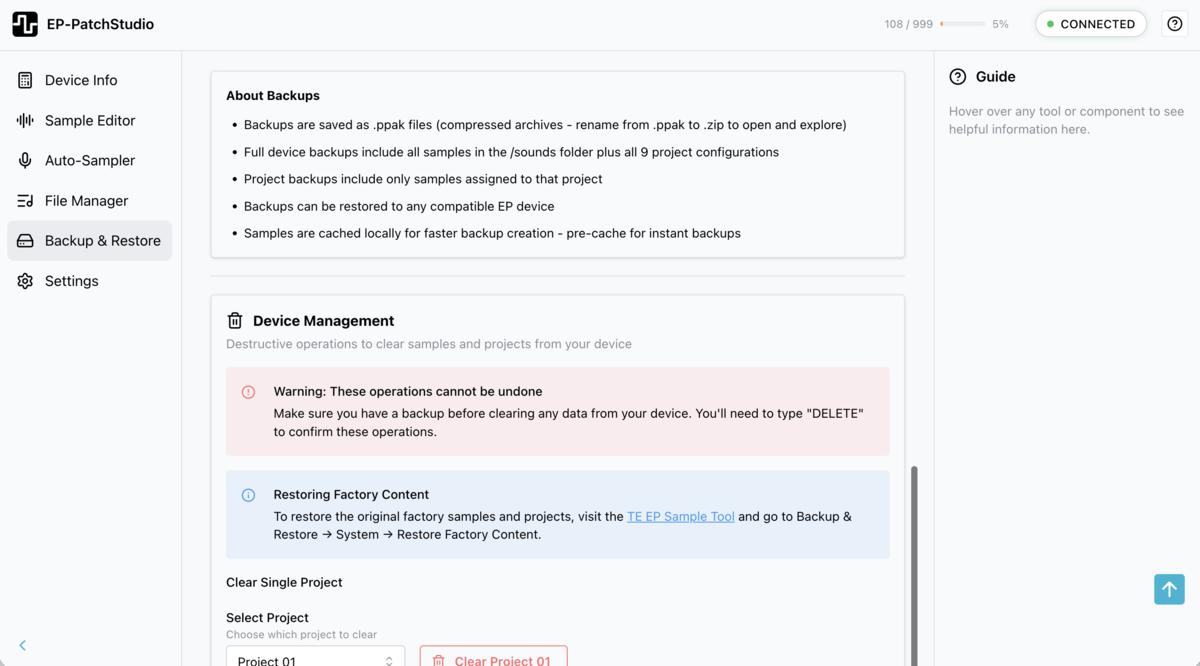
Back up individual projects or your entire device, samples and project data included. Restore to the same device or a different one. Everything is preserved exactly as it was. A progress bar shows you exactly where things are at during the backup.
SmartRestore automatically skips samples that already exist on the device, so partial restores are faster and avoid unnecessary writes.
Backup Types
Choose from three backup scopes:
Single Project
Backs up all samples assigned to a single project's pads. Perfect for saving individual compositions or sound sets.
Use when: You want to preserve a specific project or share a project with others
All Projects
Backs up all samples across all projects on your device. Comprehensive backup of your entire workflow.
Use when: You want to preserve all your projects before a firmware update or major change
Full Device
Backs up every sample slot on your device, including unassigned samples. Complete mirror of device memory.
Use when: You want a complete backup before factory reset or switching devices
Creating a Backup
Step-by-step backup process:
- Connect your device
Ensure your EP device is connected via USB and detected by EP-PatchStudio
- Navigate to Backup & Restore
Click the Backup & Restore section in the sidebar
- Select backup type
Choose between Single Project, All Projects or Full Device using the tabs
- For Single Project: select which project to back up from the dropdown
- Wait for sample cache sync
EP-PatchStudio will cache all samples from the device. A progress bar shows the caching status.
Important: Wait for caching to complete before creating a backup. The app shows "Caching samples: X / Y" with a progress bar.
- Click the backup button
Click "Backup Project" (or "Backup All Projects" / "Backup Full Device" depending on your selection)
- Choose save location
Select where to save the backup file on your computer
- Wait for backup to complete
The backup process will create a compressed archive containing all samples
Backup file information:
- The top right shows total sample count and storage size (e.g., "108 SAMPLES (6.3 MB)")
- Full device backups use the .pak extension; single-project backups use .ppak
- File size depends on the number and quality of samples
Restoring a Backup
Restoring saved backups to your device:
- Connect your device
Ensure your EP device is connected and detected
- Navigate to the Restore tab
Switch to the "Device Restore" section
- Select backup file
Click "Choose Backup File" and select your .pak or .ppak file
- Preview backup contents
The app will show details about the backup (sample count, date created, device type)
- Choose restore scope
- Full restore: Replaces all device samples with backup
- Project restore: Restores to a specific project slot
- SmartRestore: Skips samples that already exist on the device, making restores faster and avoiding unnecessary writes
- Confirm and restore
Click "Restore" and confirm the operation
- Wait for transfer
Samples will be transferred to your device via USB MIDI. This may take several minutes for large backups.
Warning: Restore Overwrites Data
Full restore will overwrite ALL samples on your device. Create a backup of your current device state before restoring if you want to preserve it.
Your backup library
Every backup you take is kept in an in-app library, so you're not hunting through folders for the right file. Under Your Backups you get a list, newest first, ten to a page. Each row shows the date, which device it came from, whether it's a full device backup (.pak) or a single project (.ppak), and its size. From the row you can restore, export a copy to disk, or delete it.
This device vs all backups
Toggle between This device and All backups to narrow the list to the connected device or see everything you've got. When you're viewing all backups, each row uses the nickname you gave the device, so a backup reads as "gig 40" rather than a serial number.
Tags
Any backup can take tags. Tag the one you made before a firmware update, or the clean starting point you keep coming back to, and you can pick it out of a long list in a second. Tags are just labels, so use whatever wording makes sense to you.
Pinning and auto-prune
To stop the library growing forever, EP-PatchStudio auto-prunes: it keeps the five most recent backups per device and clears out older ones as new ones come in. To protect a backup from that, pin it. Pinned backups show a Kept badge and are never auto-removed, so your known-good baseline stays put no matter how many everyday backups pile up on top. The backup you've just taken is always safe too, even if it tips you over the limit.
The library shows its total size and warns you if it grows past a couple of gigabytes, so a stack of full-device backups doesn't quietly eat your disk.
Understanding Sample Caching
EP-PatchStudio uses a sample cache system to speed up backup operations:
- Auto-sync on connect: The sample cache starts syncing automatically in the background when your device connects
- Cache status: Shows "Caching samples: X / Y" with progress bar during sync
- Cache storage: Cached samples are stored in the app's local database (IndexedDB)
- Rebuilding cache: If samples change on device, the cache automatically rebuilds
The cache system means subsequent backups are much faster, as samples don't need to be re-downloaded from the device.
Wait for Caching to Complete
Don't start a backup while caching is in progress. Wait for "Sample cache sync complete" message or for the progress bar to reach 100%.
Best Practices
- Regular backups: Create backups before major changes to your device
- Name your backups: Use descriptive filenames with dates (e.g., "EP40-LiveSet-2025-01-16.pak")
- Store backups safely: Keep backups on external drives or cloud storage
- Before firmware updates: Always create a full device backup before updating firmware
- Project-specific backups: Save individual projects as backups to share with collaborators
- Test restores: Occasionally test restoring backups to verify they work correctly
- Don't disconnect during backup: Wait for the backup process to complete before unplugging
Common Use Cases
Before Live Performance
Create a full device backup of your live set. If anything goes wrong during soundcheck or performance, you can quickly restore to a known-good state.
Sharing Projects
Back up a single project as a .ppak file. The .ppak bundles the project and its samples together, so you can send it to someone else and they can restore it to a slot on their device, exactly as you made it.
Switching Devices
Back up your current EP and restore to a new or different device. All your samples transfer with the backup.
Firmware Updates
Create a full device backup before updating your EP's firmware. If the update causes issues, you can restore your samples.
Experimentation
Back up your current setup before trying new sample libraries or making major changes. You can always restore if you don't like the results.
Troubleshooting
Backup fails or hangs
- Ensure device is connected and not sleeping
- Check USB cable connection
- Wait for sample caching to complete
- Try restarting the app and reconnecting
Restore doesn't complete
- Verify backup file isn't corrupted
- Ensure device has enough free space
- Check USB connection stability
- Try restoring in smaller batches (project by project)
Cache won't rebuild
- Restart the app and reconnect your device
- Check available disk space on your computer
- Export diagnostic logs and contact support if the issue persists
Backup file won't open
- Verify the file has the .pak or .ppak extension
- Check file isn't corrupted or incomplete
- Ensure you're using a compatible version of EP-PatchStudio
Never lose your work again
Full device backup in about 2 minutes. One click. Free trial available.